48 Hours to Secure Your Bocconi Test Setup in Italy: ID, 3 Devices
48 Hours to Secure Your Bocconi Test Setup in Italy: ID, 3 Devices
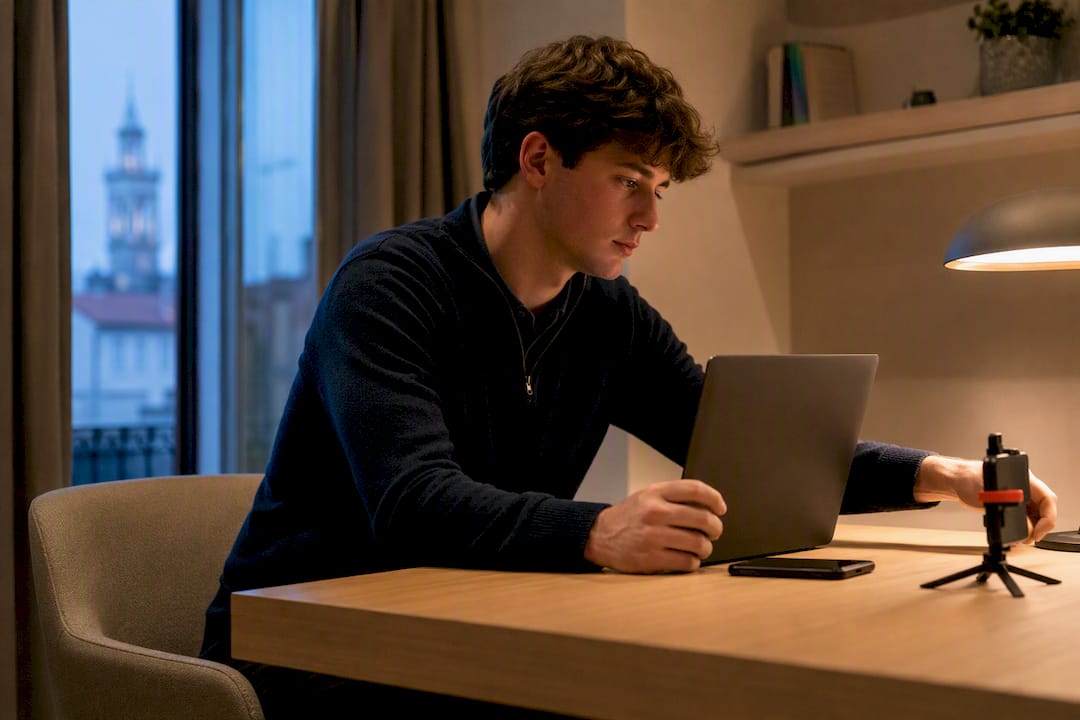
To take the Bocconi online test, bring only your valid ID, one pen or pencil, two blank A4 sheets, and a water bottle without a label to your desk. You also need three devices working together: your computer, a second mobile device for lateral filming, and a webcam or microphone if they aren’t built in. Everything else, including the required software, must be installed and tested before you log in.
TL;DR:
- Using a wired ethernet connection is strongly recommended, as unstable Wi-Fi is the most common cause of invalidated attempts.
- Running a full timed rehearsal with your actual devices and room setup at least twice, 48 hours before and on the test day, helps identify potential issues.
- Ensuring all required software is installed with the correct versions 48 hours and again on the morning of the exam is critical to prevent launch failures.
- Positioning your mobile device about 1.5 meters from your desk and ensuring the entire room is well lit with no personal belongings or reflections in view is essential.
- Logging in at least 20 to 30 minutes early allows enough time to complete identity verification, technical checks, and room scan without rushing.
Table of Contents
- What to Bring for the Bocconi Test: The Desk and Device Checklist
- Technical Setup and Required Software: What to Install Before Test Day
- How to Set Up Your Room for the Bocconi Online Test
- Test-Day Sequence: From Login to Submission
- Prepadmit’s Pre-Test Checklist: What Practice Actually Catches
- How Early Should You Log In Before the Bocconi Test Starts?
- What to Do If Something Fails Mid-Test
- Are Breaks Allowed During the Bocconi Test?
- What Actually Determines Whether Your Bocconi Attempt Goes Smoothly
- Get Your Setup Right Before You Book: How Prepadmit Helps
- Sources
What to Bring for the Bocconi Test: The Desk and Device Checklist
The desk rules are strict, and Bocconi enforces them precisely. Your workspace should look almost bare when the proctor checks it on camera.
Here’s what belongs on the desk and around your workstation:
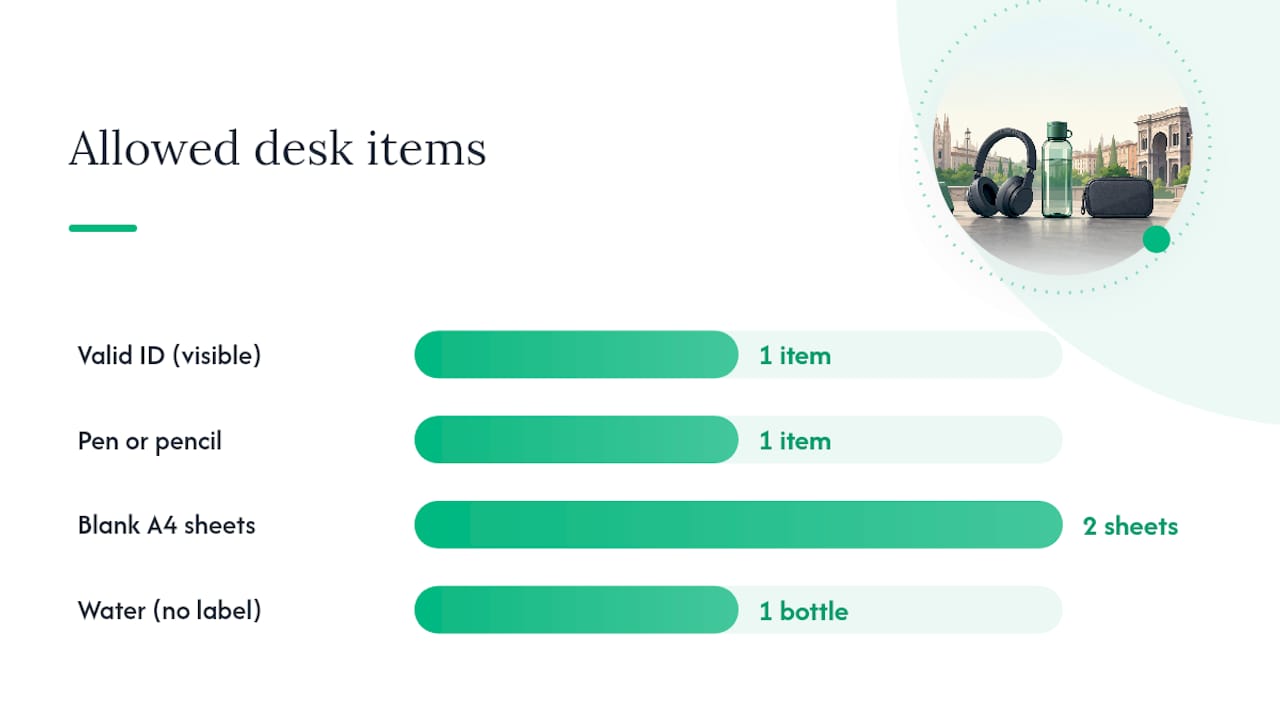
- Valid ID, placed where it’s visible on camera, matching the name on your Personal Area account.
- One pen or pencil, nothing more. A backup pen tucked in a drawer will get flagged if it’s visible.
- Two blank A4 sheets for rough work. Bring extras in case one gets used up before you realize you need it, but only a limited number can be on the desk at once.
- Water without a label, since branded bottles or cans are treated as unapproved items under the official test rules.
Beyond the desk, your device setup determines whether the test even starts. You need an admin computer (desktop or laptop) running the exam itself, plus a second mobile device positioned to film you from the side. If your computer lacks a built-in camera or microphone, add a separate webcam and mic. Keep a charger within reach for both devices. A dead battery mid test is one of the most avoidable ways to lose an attempt.
On the digital side, have your Personal Area login credentials memorized or written down, along with the email titled “You are ready for your exam,” which contains your access link. If you paid for the attempt recently, keep the payment confirmation nearby in case a support agent asks for it.
For connectivity, plug in an ethernet cable if your router allows it. Mobile hotspots and shared Wi-Fi networks are common failure points, and Bocconi’s guidance is blunt about it: unstable connections cause invalidated attempts more often than any other single factor.
Technical Setup and Required Software: What to Install Before Test Day
Every required program has an exact version, and Bocconi links to it directly from your Personal Area. Downloading Safe Exam Browser or the ProctorExam plugin from a generic search result instead of your Personal Area link is a common mistake that causes compatibility failures on test day.
Here’s the sequence to follow:
- Log into your Personal Area and download Safe Exam Browser from the official link provided there, not from a general web search.
- Set Google Chrome as your default browser, since Safe Exam Browser depends on it running underneath.
- Install the ProctorExam Chrome plugin on your computer and the ProctorExam mobile app on your second device.
- Confirm your operating system is Windows 10, Windows 11, or a supported macOS version. Older systems can block installation entirely.
- Check your mobile device against the compatibility list in your Personal Area. Bocconi has flagged certain phones as unsupported, including the Huawei P30, Samsung Galaxy A3 (2016), and several Google Pixel models.
- Run the official system check at least 48 hours before your slot, then run it again the morning of the test to catch anything that changed overnight.
The Bocconi Instructions and rules are direct on this point: missing any one of these installs prevents the exam from launching at all, and there’s no workaround once the clock starts.
If the check fails, start troubleshooting immediately rather than the night before your slot. Switch to a wired ethernet connection, close every background application eating bandwidth, disable notifications on both devices, and set your mobile phone to airplane mode with Wi-Fi turned back on while it stays plugged into power.
Pro Tip: Take a screenshot of your successful system check and save the “You are ready for your exam” email in the same folder. If something breaks during the real test, having proof of a passed check speeds up any support request considerably.
How to Set Up Your Room for the Bocconi Online Test
Bocconi’s proctoring software watches more than your screen. It watches your room, and the rules on this are specific enough that a poorly framed shot can get an attempt cancelled before you type a single answer.
Pick a room with a single point of access. No open-plan kitchens, no extra doors or windows left out of frame, and no roommates walking through mid exam. The official rules require the entire room to be well lit and the doorway itself to stay visible in the lateral camera feed at all times.
Position your mobile device about 1.5 meters to the side of your desk, rear camera facing you, angled so both you and the doorway sit inside the frame. A phone stand works far better than propping it against a water glass. Before you start, walk through this shortlist:
- Turn off auto-lock and confirm auto-rotate is enabled so the frame doesn’t flip mid test.
- Keep the mobile device plugged into power for the full duration.
- Check for glare on your screen or reflections in windows behind you.
- Clear personal photos, documents, or anything identifying from camera view.
- Close unrelated files and browser tabs on your computer before screen sharing begins.
None of this is about tidiness for its own sake. Bocconi’s guidance on sensitive materials means anything revealing personal information in frame can trigger a compliance flag, even if you never meant it to be visible.
Test-Day Sequence: From Login to Submission
Once the room is set and the software is installed, the test day itself follows a fixed order. Knowing the sequence in advance means you’re not improvising when the clock is already running.
- Open the email titled “You are ready for your exam” and click through to your Personal Area at least 20 to 30 minutes before your slot.
- Have your ID and login credentials within reach, either printed or written on paper, since you’ll need them again during identity verification.
- Follow the on-screen prompts to check your audio, video, and screen sharing, then complete the ID photo capture and room scan.
- Launch Safe Exam Browser only after every check passes. Trying to skip ahead usually locks the session.
- Navigate the exam itself knowing that most screens display three questions at once, and moving forward often blocks you from returning to earlier screens.
- Let the system auto-save your answers as time runs out. You don’t need to manually submit if the countdown reaches zero.
If something breaks during any of these steps, use the webtesting support form within 24 hours of the incident. Technical assistance runs Monday through Thursday from 9:00 AM to 6:00 PM CET, and Friday from 9:00 AM to 4:30 PM CET, so a Saturday failure means waiting until Monday for a response.
Prepadmit’s Pre-Test Checklist: What Practice Actually Catches
Reading the rules is one thing. Running through them with your actual devices, in your actual room, exposes problems no document warns you about.
- Run a full timed rehearsal using the same computer, phone, and stand you plan to use on test day, then compare your recorded frame against the official screenshots.
- Complete the system check twice: 48 hours out and again the morning of the attempt, fixing anything that flags before your booked slot arrives.
- Keep a printed copy of your ID and login details even if you’re confident you’ll remember them.
- Test your ethernet cable and confirm which power outlets you’ll actually use, since a rehearsal in a different room won’t catch this.
- Practice the question navigation under time pressure so the “Next” button doesn’t catch you off guard when it blocks a return to an earlier screen.
A full mock run under real recording constraints tends to surface friction, camera angles, reflections, login delays, that a written checklist alone never reveals.
How Early Should You Log In Before the Bocconi Test Starts?
Log into your Personal Area at least 20 to 30 minutes before your scheduled slot. That window gives you enough time to move through identity verification, audio and video checks, and the room scan without feeling rushed against the clock.
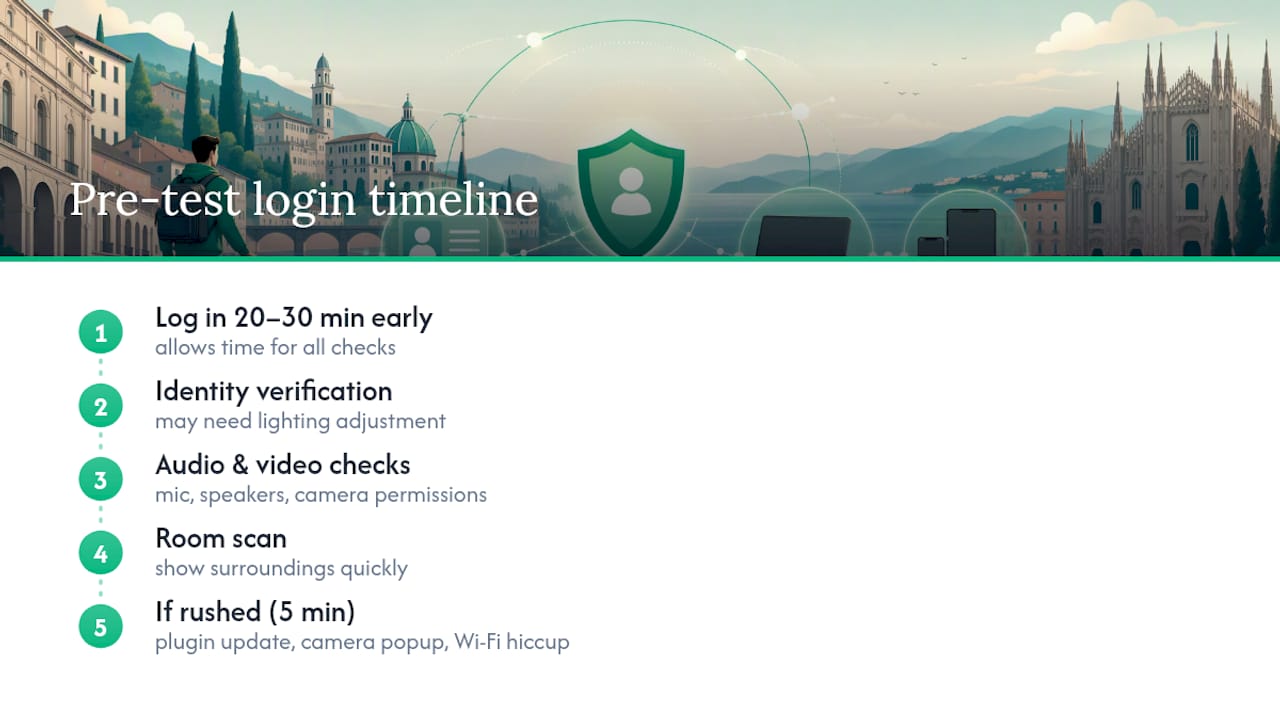
Rushing this step is where a surprising number of attempts go wrong. Candidates who log in five minutes before their slot often hit a snag they didn’t expect: a plugin update prompt, a camera permission popup, or a Wi-Fi hiccup that eats the buffer they thought they had. None of these are dramatic on their own, but stacked together in a five-minute window, they can push you past your start time before the exam even begins.
If you’ve run your system check the morning of the test as recommended, logging in 20 to 30 minutes early is mostly a formality; everything should click into place quickly. If you skipped that morning check, treat the login window as your last chance to catch a problem, and give yourself closer to 30 minutes rather than 20.
One detail worth planning around: the identity verification step sometimes takes longer than expected if lighting in your room shifts between your rehearsal and the actual test time. Morning light through a window looks very different at 2:00 PM. Log in early enough that a lighting adjustment doesn’t cost you exam minutes.
What to Do If Something Fails Mid-Test
Technical failures during the actual exam are rare, but they happen, and Bocconi’s rules assume you’ll know how to react rather than panic.
If your connection drops or a device freezes mid test, don’t close the browser window or restart your computer on your own initiative. Safe Exam Browser and ProctorExam are built to log session activity, and an uncontrolled restart can look like an attempt to bypass monitoring even when it isn’t. Instead, follow whatever on-screen recovery prompt appears first; the software is generally designed to resume where you left off if the interruption is brief.
If the issue doesn’t resolve within a few minutes, document everything you can: take a photo of the error message with your phone, note the exact time it happened, and write down what you were doing when it occurred. This record matters when you file a report through the support form within the required 24 hour window.
Your best backup plan is prevention rather than recovery. Staying plugged into power and wired to ethernet eliminates the two most common causes of mid test failure before they can happen. Keep a fully charged power bank near your desk anyway, and know your router’s exact location in case you need to reset it quickly between test windows, not during one.
Are Breaks Allowed During the Bocconi Test?
The Bocconi online test does not build in a scheduled break the way some standardized exams do. Once your session starts, the expectation is that you complete it in one continuous sitting within the allotted time.
This makes pre-test preparation matter more, not less. Use the restroom, silence your phone calls, and settle any household interruptions before you click into your Personal Area, because stepping away from the frame mid test risks triggering a monitoring flag even for a brief absence. The lateral camera is recording the whole time, and an empty chair for even thirty seconds looks identical to a compliance issue whether or not that’s what actually happened.
If you feel your setup or health requires special accommodation, that’s a conversation to have with Bocconi’s admissions office well before your slot, not something to improvise during the exam itself. The official channels for accommodation requests exist precisely because the standard test format assumes no interruptions once it begins.
Treat the absence of built-in breaks as one more reason to rehearse the full length of the test beforehand. If you know from a timed mock run that your concentration dips around the 40 minute mark, you can plan your pacing around that reality instead of discovering it live.
What Actually Determines Whether Your Bocconi Attempt Goes Smoothly
Most advice about this test focuses on the desk items, and that’s the easy part. Anyone can remember an ID, a pen, and two sheets of paper. What separates a clean attempt from a cancelled one is almost always the technical layer nobody rehearses: camera angles, lighting shifts, and whether your mobile device survives a full hour on battery.
The conventional wisdom treats the system check as a formality you tick off once. It’s not. Running it 48 hours ahead and again the morning of the test catches different problems, because networks, updates, and lighting all change between those two moments. Skipping the second check is the single most avoidable mistake I see recommended against, but rarely explained well enough for candidates to take it seriously.
If you prioritize one thing, prioritize the full timed rehearsal, room, devices, and all, over reading the rules one more time. Reading tells you what’s required. Rehearsing tells you whether your actual setup meets it.
— quentin
Get Your Setup Right Before You Book: How Prepadmit Helps
Reading a checklist tells you what’s required. Running a real, timed simulation under the same pressure tells you whether your setup actually holds up, and that’s the gap Prepadmit was built to close. The platform replicates Bocconi’s exam conditions using official past papers, timed practice sessions, and detailed answer corrections, so you’re not just memorizing content, you’re rehearsing the exact rhythm of the real test.
Beyond content mastery, Prepadmit gives you a low-stakes way to test your device framing, your pacing, and your navigation habits before a single euro is on the line for your official attempt. Run a full simulation on Prepadmit this week, check that your camera angle and room setup match what you rehearsed here, and walk into your booked slot already knowing your workflow works.
Recommended
Related articles
Ready to ace your admission test?
Discover PrepAdmit, the platform that helps you succeed at top university admission tests.
Discover PrepAdmit