7 Essential Phone Setup Steps for Bocconi Test Day
7 Essential Phone Setup Steps for Bocconi Test Day
Yes, you can use your smartphone for plenty of Bocconi study tasks: checking your schedule, drilling practice questions, reading library journals, and reviewing notes on the train. But the smartphone has a different, mandatory job during the actual online Bocconi test: room scanning through ProctorExam. The test itself runs only on a compatible desktop or laptop with Safe Exam Browser. Mixing up those two roles is the fastest way to waste a test attempt.
TL;DR:
- Use a supported smartphone model tested by Bocconi and test your camera angle days before the exam to prevent scan rejections.
- Your phone only captures workspace footage during the test, while the actual exam must be run on a desktop or laptop with Safe Exam Browser.
- Separate study tasks: mobile drills for daily practice and full-length simulations on a desktop to build endurance and familiarity.
- Keep your devices updated, use a proper stand, and avoid additional devices or hotspots to ensure stable proctoring and testing environments.
- Incorporate regular, short mobile practice sessions and full desktop simulations into your weekly routine to improve pacing and reduce test day nerves.
Table of Contents
- What Can You Actually Study on a Smartphone at Bocconi?
- How Does Bocconi Use Your Smartphone During the Online Test?
- Building a Study Routine That Splits Phone and Desktop Work
- Your Smartphone and Room Setup Checklist Before Test Day
- Which Smartphone Habits Keep Your Study and Proctoring Reliable?
- Where Prepadmit Fits Into a Mobile and Desktop Study Plan
- A Realistic Weekly Routine That Actually Works
- Ready to Turn Practice Into a Score Bump?
- Sources
What Can You Actually Study on a Smartphone at Bocconi?
Bocconi gives students three official mobile touchpoints, and each one has a clear job. Knowing which task belongs on which device saves you from frustration on results day and from technical trouble on test day.
yoU@B Pro is the app most students open first. It handles exam registration, grade viewing, class schedules, check ins, and push notifications, and your digital ID card lives there too. It’s built as a supplement to the desktop Agenda, not a replacement. Administrators design it that way on purpose: institutional apps like this intentionally trim functionality so the phone screen stays simple, which means certain configurations (like verifying a booking change or resolving a scheduling conflict) still need the desktop version.
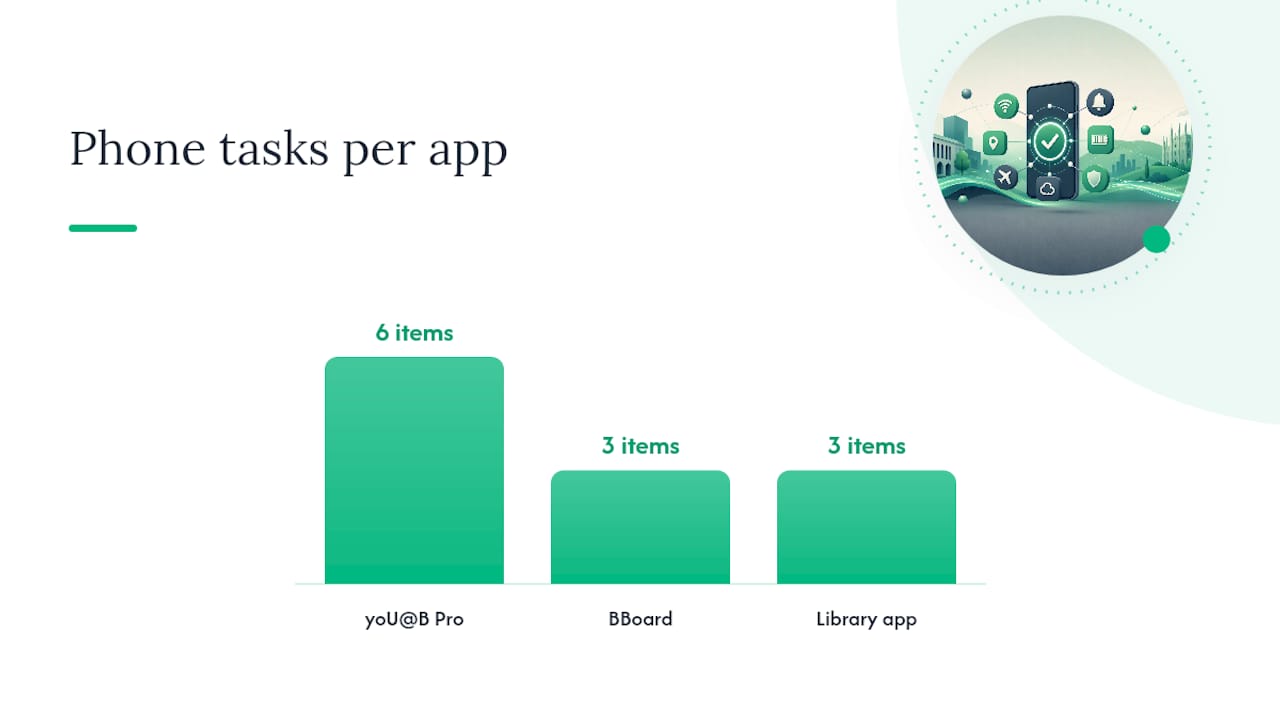
BBoard, Bocconi’s e-learning platform, works well on mobile for watching recorded lectures or skimming a reading between classes. Save assignment submissions and longer document work for a laptop screen where you can actually see what you’re doing.
Library access rounds out the trio. With your university credentials, you can read the Financial Times, The Economist, and other major titles straight from your phone, on campus or off. That’s a genuinely underused feature for building the current-affairs knowledge base the Bocconi Test rewards.
- yoU@B Pro: exams, grades, schedule, ID, notifications
- BBoard: lecture playback, quick reading, not submissions
- Library app: FT, The Economist, and academic journals on the go
How Does Bocconi Use Your Smartphone During the Online Test?
Your phone becomes exam equipment the moment the test starts, but not the exam itself. Bocconi requires a desktop or laptop with administrator rights to actually run the test through Safe Exam Browser. The smartphone or tablet sits beside you running the ProctorExam app, capturing lateral and environmental footage of your workspace.
That distinction trips up more candidates than you’d expect. The procedure Bocconi publishes is specific: verify technical requirements, complete identification with photos and ID, run the room scan through your phone, launch the lockdown browser, then begin. Skipping a step or using an incompatible device can invalidate the entire session, according to the official test instructions.
Bocconi publishes a list of phones known to cause problems with ProctorExam, including the Huawei P30, Samsung Galaxy A3 (2016), A13, A23, and several Google Pixel models from Pixel 3 onward. If your phone is on that list, or close to it in age, borrow a different device rather than risk a rejected scan.
Pro Tip: Test your exact camera angle with ProctorExam days before the exam, not the morning of. Framing that leaves your hands or screen out of view is one of the most common reasons candidates get flagged.
- Required: desktop/laptop with admin rights, Chrome extension, Safe Exam Browser
- Required: smartphone or tablet with ProctorExam installed and updated
- Banned: mobile hotspots, earbuds, secondary screens, extra devices in the room
Building a Study Routine That Splits Phone and Desktop Work
The mistake most students make is treating their phone as a mini laptop. It isn’t one, and trying to force full-length simulations onto a 6 inch screen usually backfires. A smarter routine separates tasks by what each device does best.
- Morning or commute: run a 10 to 15 minute drill on Prepadmit’s mobile-friendly practice mode, covering logical reasoning or reading comprehension.
- Midday: read a library article or two on your phone, saving anything worth revisiting to a note app.
- Evening or weekend: move to desktop for a full-length simulation that mirrors actual test timing and format.
- Weekly sync: consolidate notes, flagged questions, and calendar updates from yoU@B Pro into one cloud folder you can reach from either device.
This split matches what Bocconi itself signals about its own test preparation resources: short app-based drills for daily reps, full simulations for depth. Our step-by-step Bocconi Test guide breaks this pacing down further if you want a week-by-week structure.
Pro Tip: Download PDFs and flashcard sets before you leave home. Mobile data drops on trains and in older buildings, and offline copies mean a dead signal never costs you a study session.
Your Smartphone and Room Setup Checklist Before Test Day
Getting the physical setup right matters as much as knowing the material. Follow this sequence the day before and the morning of your test.
- Update ProctorExam and Safe Exam Browser to their latest versions on both devices.
- Test your computer’s camera and microphone, and confirm you have administrator rights.
- Reinstall the Chrome extension if you switched browsers or updated your operating system recently.
- Position your phone laterally, roughly 1.5 meters away, angled to capture your hands, keyboard, and screen.
- Mount the phone on a stand or tripod rather than propping it against random objects that shift.
- Plug your phone into power and set screen rotation to auto so the frame doesn’t flip mid test.
- Turn off notifications and switch to airplane mode, except for whatever connection ProctorExam instructs you to keep active.
- Prefer a wired Ethernet connection over Wi-Fi; never use a mobile hotspot.
- Keep a charger and spare charging cable within reach.
- Know your support contact in advance in case a technical issue comes up.
- Be ready to show your ID to the camera on request, exactly as the official instructions describe.
Our breakdown of what the Bocconi online test actually involves covers the platform side of this setup if you want the fuller technical picture.
Which Smartphone Habits Keep Your Study and Proctoring Reliable?
Buying the newest phone the month before your test is rarely the right move. A stable, updated mid-range device that Bocconi’s proctoring software already supports beats an unreleased flagship model with untested compatibility. Bocconi’s own reporting on device habits notes that students often upgrade phones prematurely driven more by psychology than need, when a durable, well-maintained device would serve them just as well for serious academic work.
A few habits protect you on both fronts:
- Keep your OS and apps updated year round, not just the week before your test.
- Clean your camera lens and avoid ultra-wide angle lenses that distort room scans.
- Use a proper phone stand instead of balancing it against a stack of books.
- Back up study notes to the cloud weekly so a lost or damaged phone never costs you your work.
Pro Tip: If you’re weighing a phone upgrade before test season, prioritize camera stability and confirmed ProctorExam compatibility over specs like screen size or processor speed.
Where Prepadmit Fits Into a Mobile and Desktop Study Plan
Bocconi doesn’t publish a single official prep manual. It points students toward short app-based exercises and full webtesting simulations, which is exactly the two-track structure Prepadmit was built around.
Prepadmit gives you official past papers, on-demand practice tests, detailed answer corrections, skill-specific drills, and progress tracking against peers, usable from your phone for quick reps and from desktop for full mock exams that mirror real test conditions. That combination matters because fluency built through daily mobile drills and endurance built through timed desktop simulations train different skills. Neither one substitutes for the other.
A Realistic Weekly Routine That Actually Works
Most students who struggle aren’t lacking material. They’re doing full mock exams on their phone screen, then wondering why the real test feels harder than practice. My honest recommendation: five days of ten minute mobile drills, then two full desktop simulations timed exactly like the real thing. Protect that mock environment. Close every tab, silence your phone, and sit where you’ll actually sit on test day.
Pro Tip: Treat your two weekly desktop mocks like the real exam, down to the room and the chair. Familiarity with the environment reduces the nerves that hurt performance more than most students realize.
— quentin
Ready to Turn Practice Into a Score Bump?
If you’ve been prepping with scattered PDFs and old past papers, Prepadmit replaces that patchwork with one structured system built specifically for the Bocconi Test, and it costs a fraction of what private coaching runs. Start with a short mobile drill module during your commute this week, then book a full desktop simulation for the weekend to test your pacing under real conditions.
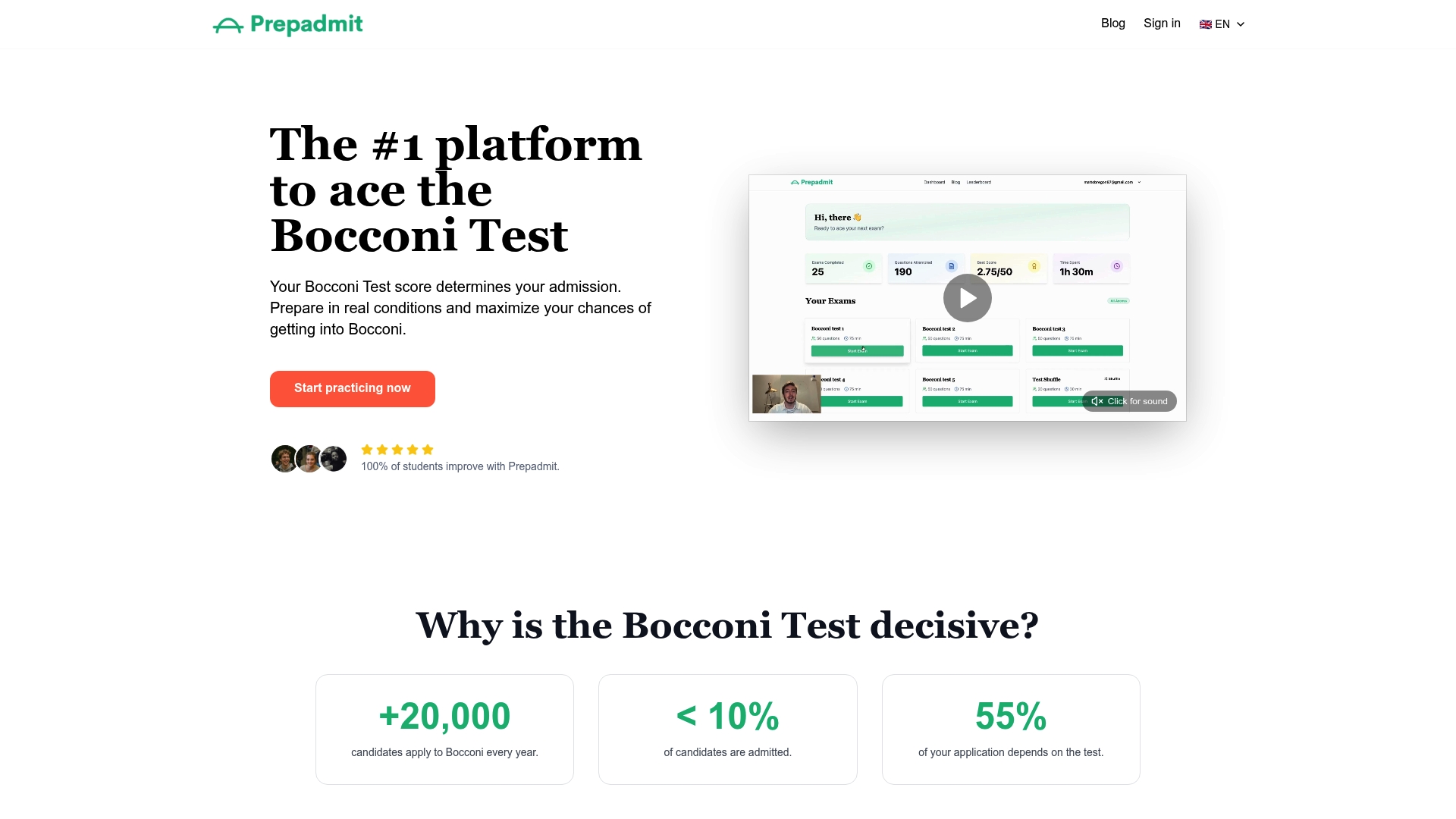
Prepadmit’s practice questions and grading pull directly from official past papers, offering structured preparation to help improve your test scores, backed by a money-back guarantee. Whether you’re deciding what to focus on next or want a clearer sense of your current level, our guide on what changed in the Bocconi Test format is a useful next stop. When you’re ready to start practicing seriously, head to Prepadmit and run your first diagnostic test today.
Sources
Before test day, recheck Bocconi’s online test application and admissions page for the latest device compatibility list, the official test instructions PDF for exact procedural rules, and the library’s digital resources page for mobile journal access. Bocconi updates these periodically, sometimes just weeks before a test session, so a final check the week of your test is worth the five minutes it takes. For securing any exam materials you store locally, this guide to password-protecting exam files covers the basics worth knowing.
- Online Bocconi test — application and admissions (Bocconi)
- yoU@B Pro and Agenda documentation (Bocconi didactics)
Recommended
Related articles
Ready to ace your admission test?
Discover PrepAdmit, the platform that helps you succeed at top university admission tests.
Discover PrepAdmit